
Add Unjuiced to your AI app once, then ask for sportsbook prices, hit rates, line movement and +EV bets in plain words. Setup takes a few minutes.
What you need
- An Unjuiced membership: Scout, Unjuiced Pro or Syndicate. Free accounts don't include the AI tools.
- Claude, ChatGPT, Grok or Codex. Your AI app's own plan is separate from your Unjuiced plan.
- This address. Every app asks for it:
https://unjuiced.bet/api/mcpThere is nothing to install, and no password or API key to paste. You sign in to Unjuiced and approve the connection.
Set up your app
Pick your app. A step with more than one click plays as a loop that you can pause.
Claude on the web and desktop, on every Claude plan. Claude's Free plan allows one custom connector. On Team and Enterprise, an owner adds Unjuiced under Organization settings → Connectors first.
- 1Open Connectors in Settings
Open your account menu at the bottom left and choose Settings. Under Customize, choose Connectors, then Add → Add custom connector.
- Open your account menu
- Choose Settings
- Choose Connectors
- Choose Add
- Add custom connector
- 2Name it and paste the server URL
Enter Unjuiced and the URL below, then choose Continue. Keep the sign-in options Claude detects and choose Add.
https://unjuiced.bet/api/mcp- Name it Unjuiced
- Paste the server URL
- Choose Continue
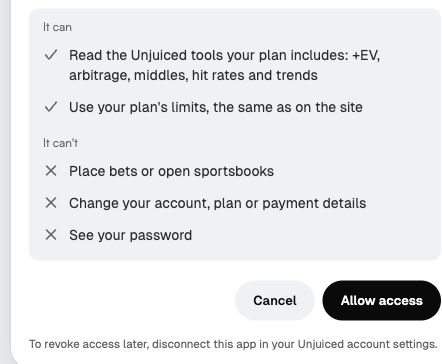
- 3Approve access in Unjuiced
Sign in with the Unjuiced account that holds your membership, then choose Allow access.
- 4Turn it on in a chat
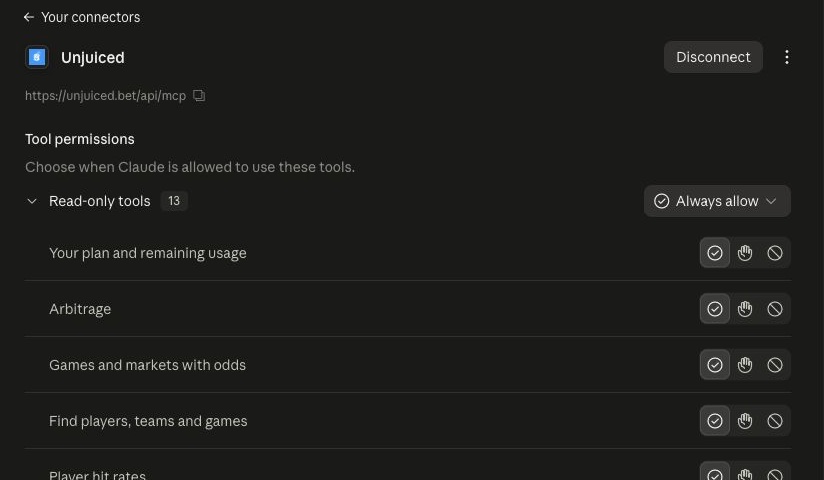
Unjuiced now shows as connected, with its read-only tools listed. In a chat, turn it on from + → Connectors.
ChatGPT on the web, on plans that allow custom MCP servers. On Business and Enterprise, an admin adds and publishes Unjuiced from workspace settings before members can install it.
- 1Start a custom MCP server
Open Plugins in ChatGPT's sidebar, choose Add, then Add custom MCP server.
- Open Plugins
- Choose Add
- Add custom MCP server
- 2Fill in the form
Name it Unjuiced, keep Server URL selected and paste the URL below. Leave Authentication on OAuth, tick I understand and want to continue, then choose Create as a plugin.
https://unjuiced.bet/api/mcp- Name it Unjuiced
- Leave it on Server URL
- Paste the server URL
- Leave it on OAuth
- Tick I understand
- Create as a plugin
- 3Approve access in Unjuiced
Choose Connect Unjuiced when ChatGPT asks. Sign in with the Unjuiced account that holds your membership, then choose Allow access.
- 4Use it in a message
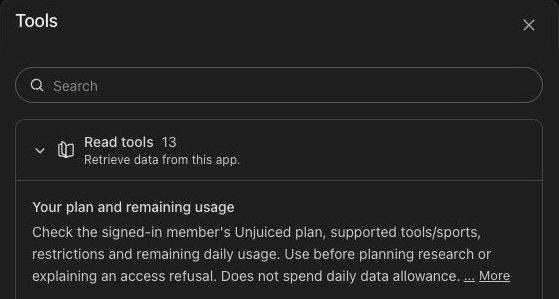
Unjuiced is now listed under Plugins → Personal with its read tools. Select it (or type @) in every message where you want fresh data: the selection covers that one message.
Grok on the web. xAI says connectors are available to all Grok users. On Grok Business and Enterprise, a team admin adds Unjuiced first at console.x.ai under Grok Business → Connectors → Add Connector → Other.
- 1Start a custom connector
Open Plugins in Grok's sidebar (or go to grok.com/connectors), choose New Connector, then Custom.
- Open Plugins
- Choose New Connector
- Choose Custom
- 2Name it and paste the server URL
Enter Unjuiced and the URL below, then choose Add Connector. There is no client ID or secret to enter.
https://unjuiced.bet/api/mcp- Name it Unjuiced
- Paste the server URL
- Choose Add Connector
- 3Approve access in Unjuiced
Sign in with the Unjuiced account that holds your membership, then choose Allow access.
- 4Ask with Unjuiced
Grok calls Unjuiced on its own when a question needs it. Start a prompt with Using Unjuiced to make sure it does.
The Codex CLI, IDE extension and desktop app share one setup: add Unjuiced once and it works in all three.
- 1Add the server
In a terminal, run the command below. In the desktop app you can instead open Settings → MCP servers → Add server, choose Streamable HTTP and paste the URL.
codex mcp add unjuiced --url https://unjuiced.bet/api/mcp - 2Sign in
Run the login command (or choose Authenticate in the app). Your browser opens the Unjuiced sign-in.
codex mcp login unjuiced - 3Approve access in Unjuiced
Sign in with the Unjuiced account that holds your membership, then choose Allow access.
- 4Check the tools
Type /mcp in Codex (or run codex mcp list) and confirm Unjuiced is listed with its tools.
Using another app? Perplexity, Le Chat, Cursor, VS Code, Devin and Antigravity can sign in too. Add a custom MCP server in the app's settings and paste the same address.
Check that it worked
Ask this first:
Use Unjuiced to check my plan, available tools and remaining calls.
How to tell it worked
- The AI calls an Unjuiced tool before it answers.
- The plan and remaining calls match your Unjuiced account.
What to ask
Start with one of these. Each plays as a loop: the question, then what Unjuiced sends back.
- Ask in plain words
- Send it
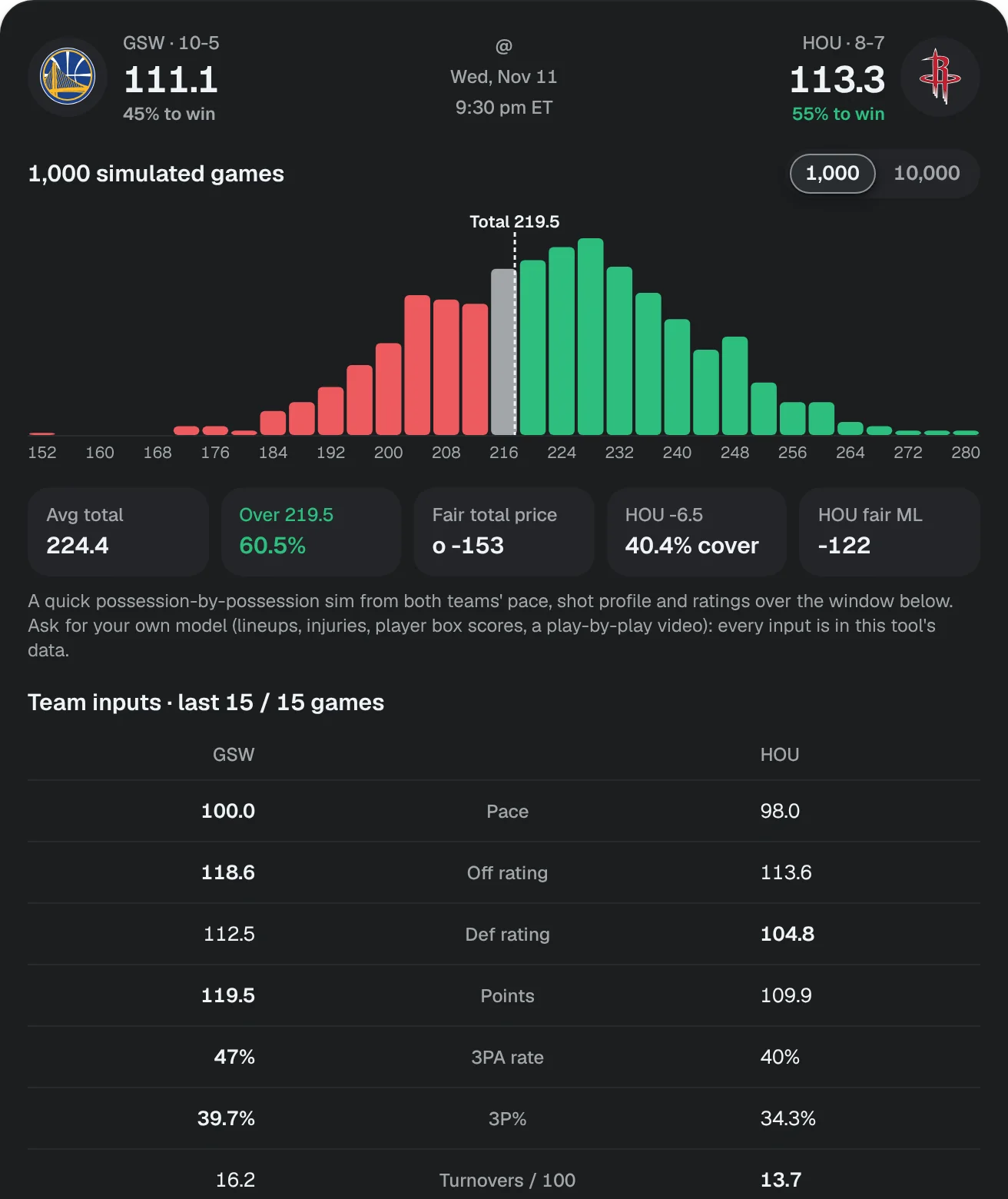
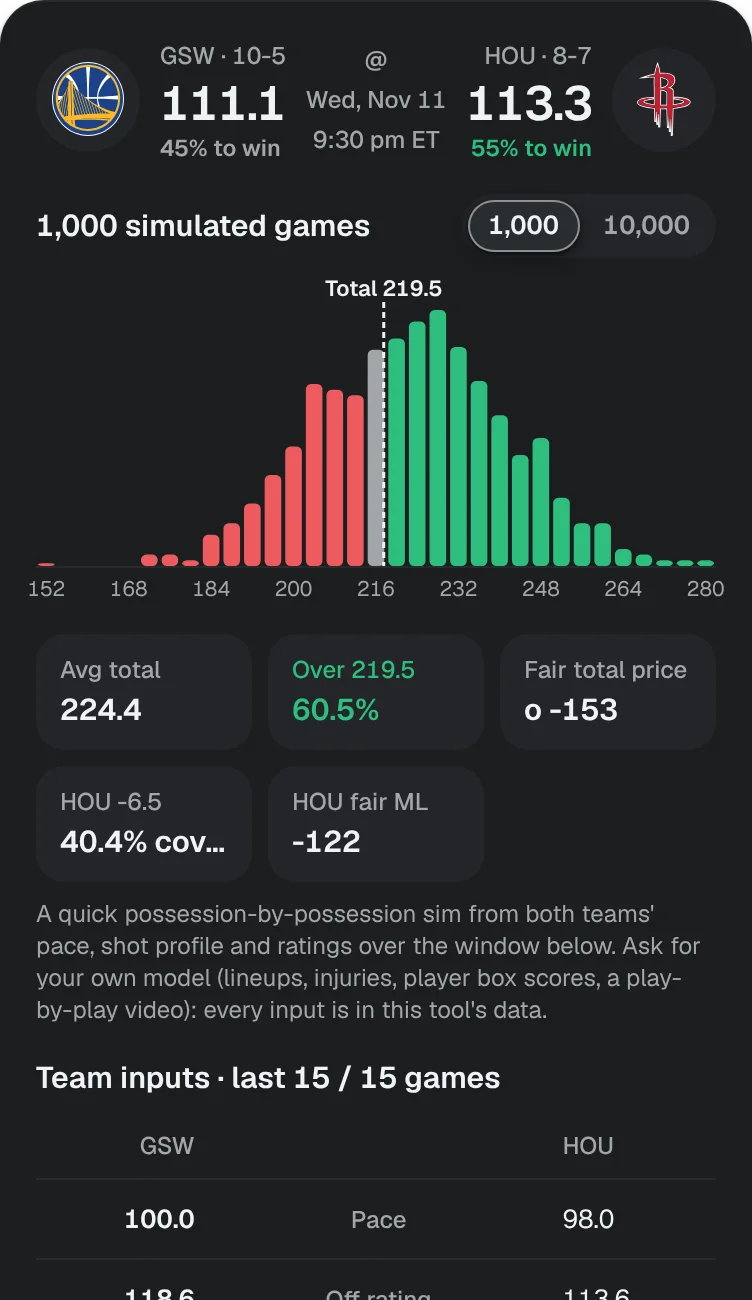
A 1,000-game simulation built from both teams' pace, shooting and rotations: each side's projected score and chance to win, the spread of totals against the market line, and fair prices. Ask for 10,000 runs, a box score or your own lineup next.
- Ask in plain words
- Send it
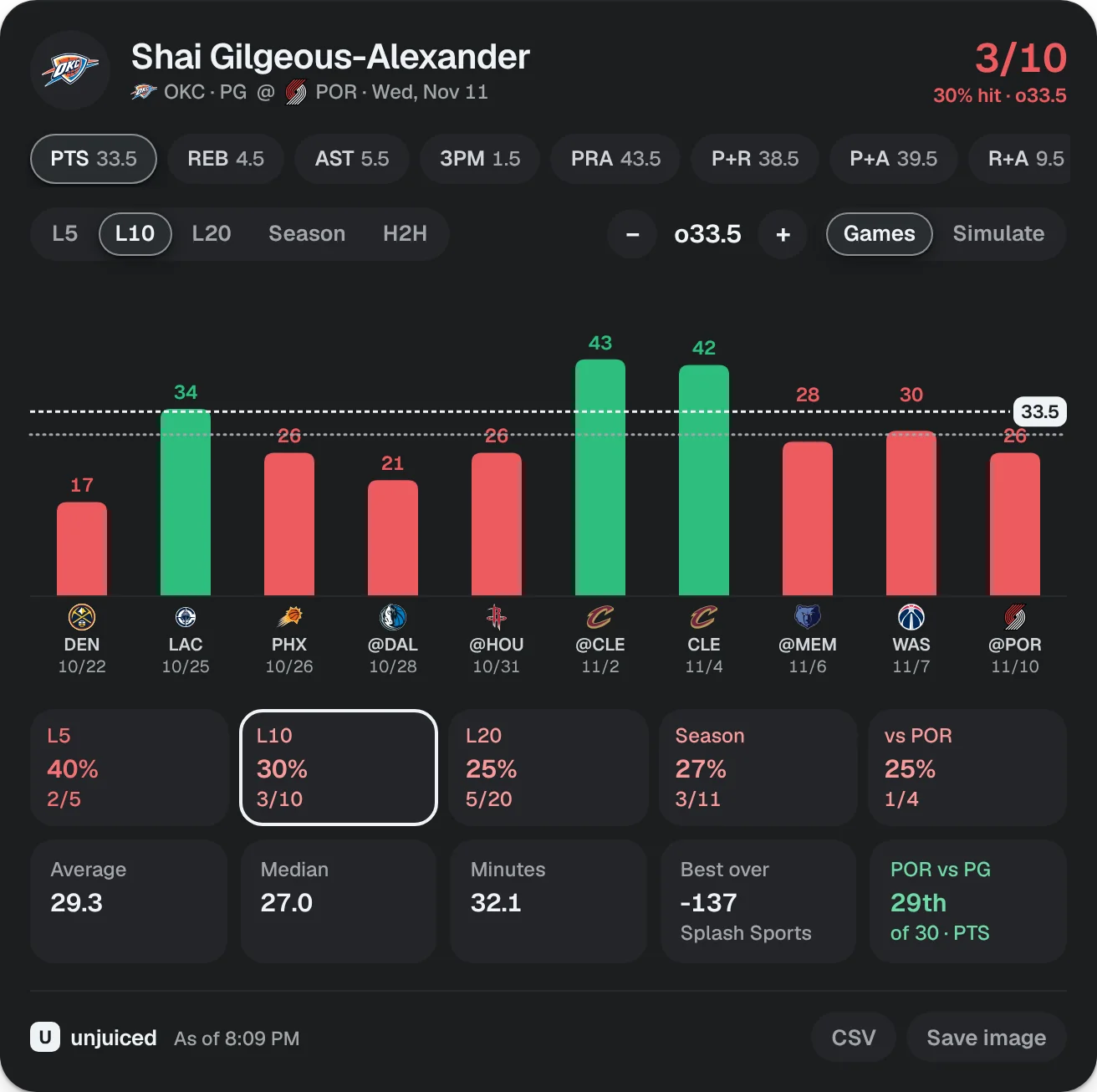
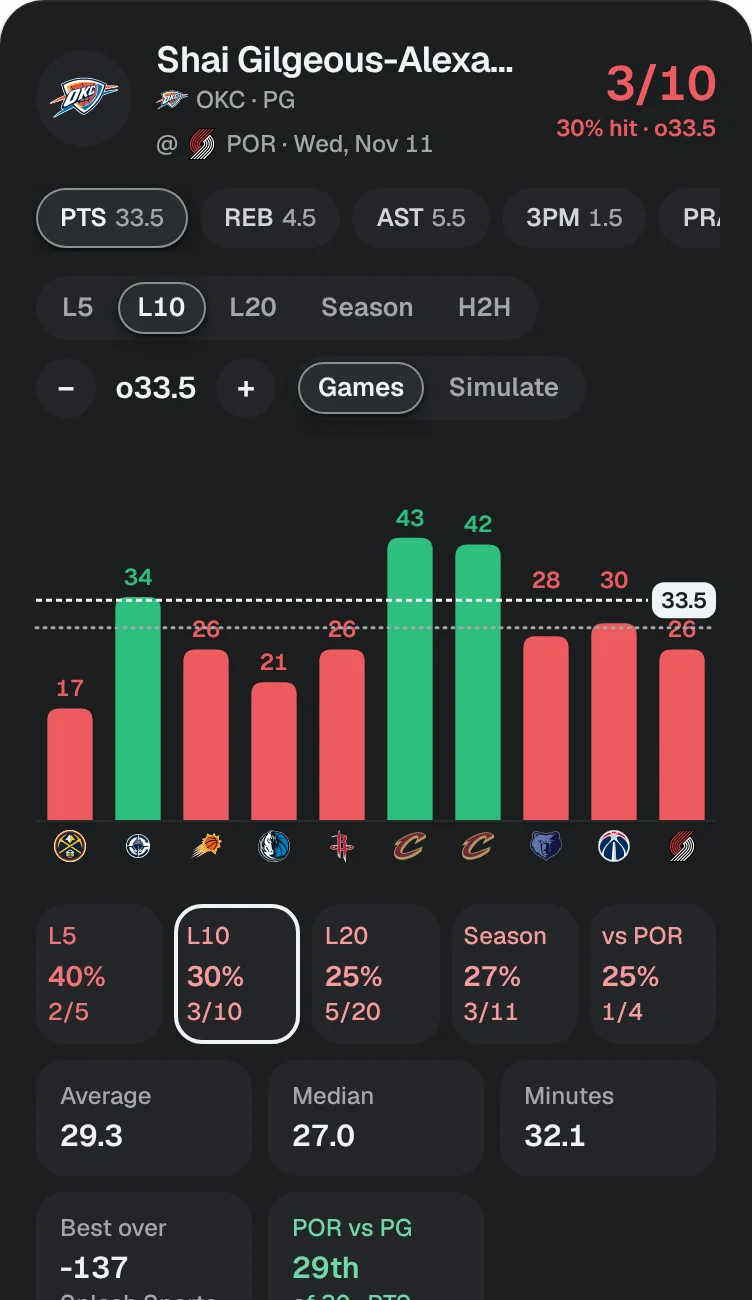
The player's last games against tonight's line, with hit rates for the last 5, 10 and 20 games, the season and this opponent, the best price and how the opponent defends the position. Switch the market or the line on the card.
- Ask in plain words
- Send it
Each book's opening and current price for one bet, with the path between them and Pinnacle's limit when it is tracked. Line history is part of Unjuiced Pro and Syndicate.
For your own questions, name the sport, the player or team, the market and your sportsbooks. For odds, add the line and the side.
Find the next Browns game and compare first-touchdown odds for KC Concepcion. Show the books, prices and timestamps.
Show Aaron Judge's hits line with his L10 hit rate and the sample size.
Find upcoming NFL games, then compare moneyline prices for one matchup across my books.
On Unjuiced Pro and Syndicate:
Find pregame NFL +EV bets at my sportsbooks. Show the price, the reference price and the EV.
What your plan includes
| Capability | Scout | Unjuiced Pro | Syndicate |
|---|---|---|---|
| Odds, hit rates, trends, event and player lookup | Included | Included | Included |
| Fair parlay pricing and supported SGP quotes | Included | Included | Included |
| Pregame +EV, arbitrage and Soft Lines | Preview | Full | Full |
| Live premium tools and Middles | Not included | Included | Included |
| Line-history calls per day | Not included | 100 | 250 |
| Data-tool calls per day | 300 | 1,000 | 2,000 |
Every plan allows 30 tool requests a minute, and daily allowances reset at midnight UTC. One question can use several calls. Asking for your remaining allowance doesn't spend one. SGP quotes share their limits with the website.
An active trial follows the access shown in your account. Manage your membership in billing settings.
Read the results
- Prices move. Confirm the price at the sportsbook before you bet. Unjuiced's tools read data; they never place bets.
- Hit rates use the lines books post. Custom lines aren't supported. Ask for the line and the sample size together, because L10 doesn't always mean ten games. A hit rate is history, not a forecast. More in How to use Hit Rates.
- An empty result isn't an error. The market may not be posted, the player may be out of season, or none of your books may carry it.
Troubleshooting
The AI answers without Unjuiced data. Turn Unjuiced on for that chat (in ChatGPT, for that message), then ask it to use Unjuiced by name.
Setup stops at "Use a supported AI app". Unjuiced doesn't know that app's sign-in address yet. Tell support which app you use and we'll add it.
Sign-in expired or the connection stopped working. Reconnect from your AI app's connector settings. If a new tool is missing, refresh the app's tool list, or remove Unjuiced and add it again.
A tool says your plan doesn't include it. Check which Unjuiced account you signed in with. Scout gets a preview of the +EV, arbitrage and Soft Lines tools, not the full boards.
You reached a limit. Ask when it resets, then wait. Retrying doesn't get around it.
No results. Check the sport, market, date and exact line. For NFL, NHL and NCAAF hit rates, name a player, team or market.
Still stuck? Contact Unjuiced support with your AI app, the time, your prompt and the error message. Never send passwords, access tokens or authorization codes.
Disconnect
Open Connected apps in Unjuiced and disconnect the app. Remove Unjuiced from your AI app too if you don't want it listed there. Conversations already saved in your AI app stay there.